
How EzySmashers manages Unity configuration
Back to ezysmashersUnity configuration in EzySmashers
In the ezysmashers-unity project, the dynamic configuration parameters for the compiled Unity game are stored in the following file:
ezysmashers-unity/Assets/StreamingAssets/configs.json
This file contains all necessary settings for the game to connect to the backend (HTTP, Socket, UDP, etc.), as well as logging and debug options. The default content of
configs.json is as follows:
{
	"autoLogin": true,
	"http": {
		"host": "http://localhost",
		"port": 8080,
		"hostOnly": false
	},
	"socket": {
		"zoneName": "game",
		"appName": "ezysmashers",
		"webSocketUrl": "ws://127.0.0.1:2208/ws",
		"tcpUrl": "127.0.0.1:3005",
		"udpPort": 2611,
		"udpUsage": true,
		"enableSSL": false
	},
	"logger": {
		"jsDebug": false,
		"logLevel": 2
	}
}
Why Use StreamingAssets?
Placing the configuration file in the StreamingAssets folder offers a key advantage: It allows the game configuration to be modified without rebuilding the Unity project.
This is especially useful in production environments, where administrators may need to:
- Change server addresses
- Update connection ports
- Enable or disable SSL
- Adjust logging levels
without having to release a new Unity build.
How Administrators Configure Unity in EzySmashers
After installing the EzySmashers plugin on ezyplatform, administrators usually need to adjust the parameters in
configs.json to match their system (host, port, zone, app name, etc.).Instead of manually editing the file on the server, EzySmashers provides a user-friendly configuration interface at: Admin → EzySmashers → Settings. Through this UI, administrators can update all Unity configuration parameters directly:

How EzySmashers ensures Unity configuration isn't overwritten during plugin upgrades
Common Issue
If administrators edit the file
ezysmashers-unity/Assets/StreamingAssets/configs.json directly, there is a significant risk: When installing or upgrading to a new version of EzySmashers, this file will be overwritten by the default version shipped with the plugin.. Consequences include:- Loss of custom configuration
- Game unable to connect to the server
- Players unable to log in or access the game
EzySmashers' Solution
To address this, EzySmashers uses a dual storage mechanism, combining the file and ezyplatform settings. The process works as follows:
1. First-Time Plugin Run
When the ezysmashers-admin-plugin runs for the first time:
- The plugin reads the content of
ezysmashers-unity/Assets/StreamingAssets/configs.json - It then saves the entire content into the ezyplatform setting under the key
ezysmashers_unity_configs
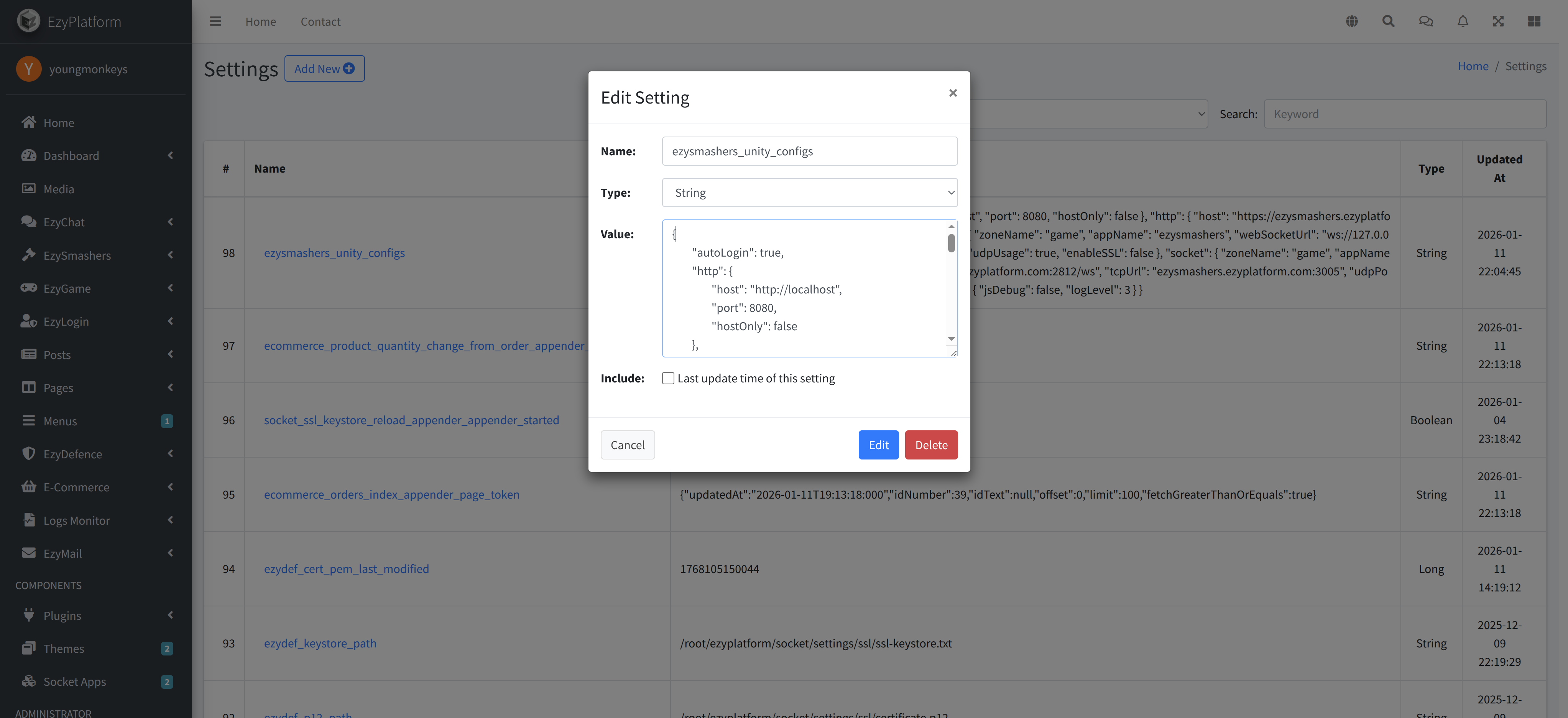
2. When Admin Updates Configuration via UI
Whenever an administrator updates the configuration at Admin → EzySmashers → Settings, the system will:
- Save the new configuration into the ezyplatform setting
ezysmashers_unity_configs - Simultaneously write the updated content back to
ezysmashers-unity/Assets/StreamingAssets/configs.json
→ This ensures the configuration is always synchronized between the UI and the Unity file.
3. When Installing or Upgrading EzySmashers
When a new version of EzySmashers is installed from the ezyplatform marketplace:
- The
configs.jsonfile in the Unity folder will be overwritten by the plugin's default version - However, the ezyplatform setting
ezysmashers_unity_configsremains intact
4. When Plugin is Restarted
Every time the ezysmashers-admin-plugin starts:
- The plugin prioritizes reading the configuration from the ezyplatform setting
ezysmashers_unity_configs - It then overwrites the Unity file:
ezysmashers-unity/Assets/StreamingAssets/configs.json
→ As a result, the actual Unity configuration is always restored correctly, regardless of plugin upgrades or reinstallation.
This mechanism guarantees that custom Unity configuration is never lost, ensures safe plugin upgrades, and keeps the game consistently connected and operational.